iPad guide
Apple Pencil Not Connecting to Your iPad?
Check Apple Pencil compatibility, charging and pairing before assuming your iPad screen or Pencil needs repair.
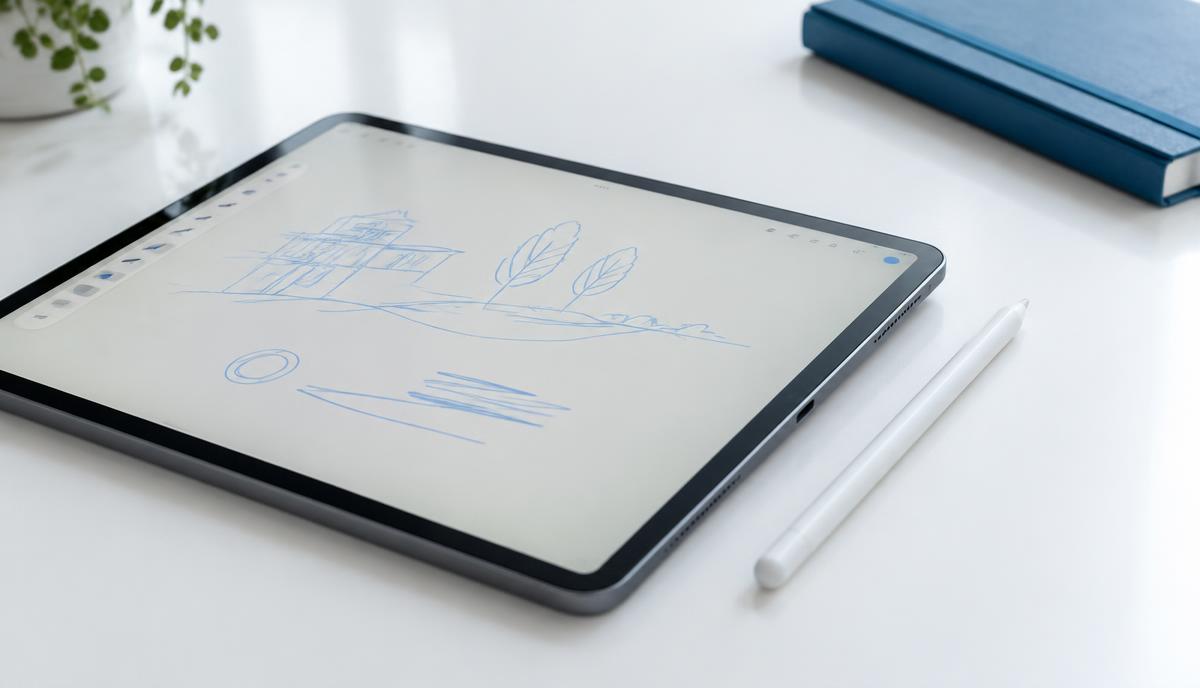
Apple Pencil models use different charging and pairing methods, and not every Pencil works with every iPad. Confirm the exact combination before buying another accessory or requesting screen work.
What the symptoms can mean
Failure to pair, no battery indication and strokes that fail in one app are separate symptoms. A Pencil that pairs normally but skips across part of the screen needs different checks from one that never connects.
What to do next
Identify both models and check Apple’s compatibility information. Charge using the supported method, restart the iPad and test in a compatible drawing or notes app. Avoid forcing a connector or overtightening the tip.
Separate pairing from drawing problems
Record whether the Pencil appears connected, whether its battery is visible and whether finger touch works in the same area. Check app input settings and gently inspect the tip for damage. A screen protector, worn tip or app setting can affect drawing without indicating a failed iPad display.
Preparing an assessment
Bring the Pencil and any required adapter with the iPad so the combination can be tested together. Mention previous screen repairs, impacts or charging problems. Back up the iPad before service; replacement of a display should not be proposed solely because a Pencil will not pair.
When to arrange a diagnosis
If the problem continues after safe basic checks, a proper diagnosis is the best next step. It helps separate a replaceable part from a deeper board, power or software issue before any repair is approved.
Common questions
Will every Apple Pencil work with my iPad?
No. Compatibility depends on the exact iPad and Apple Pencil models.
Does missed Pencil input mean the screen is broken?
Not necessarily. Tip condition, accessories, settings and compatibility should be checked first.